305-447-7022
24/7 Call Answering Service
305-447-7022
24/7 Call Answering Service
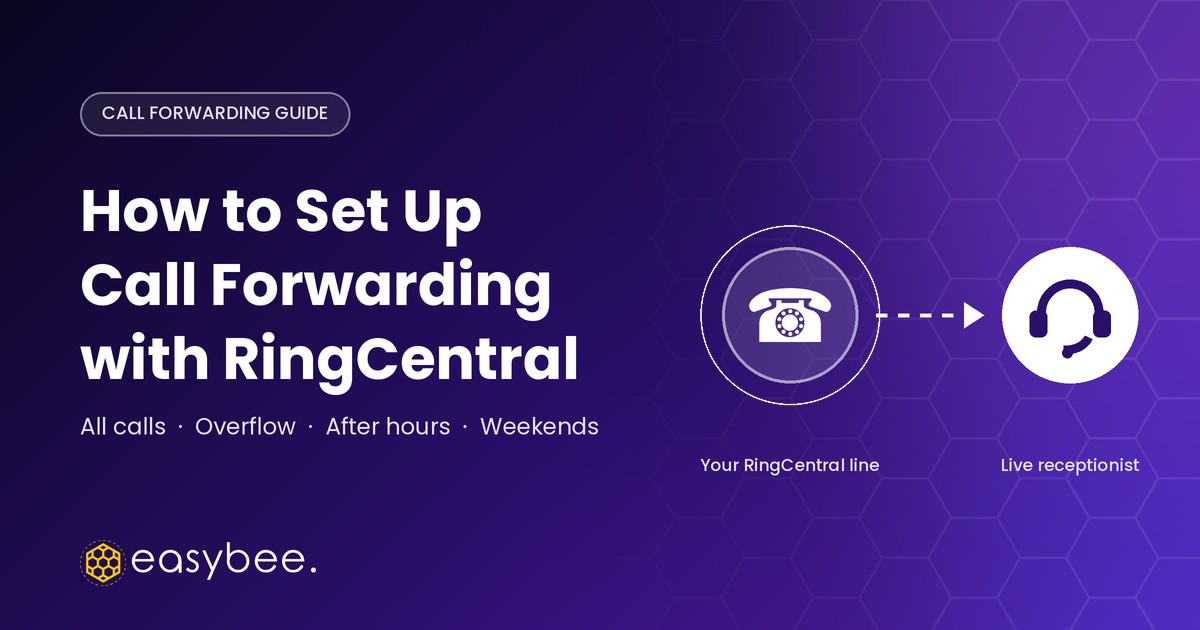
If your firm runs on RingCentral, you can send calls to an answering service in four ways: forward every call, forward only the calls your team can’t pick up, forward automatically after hours, and forward on weekends and holidays. Below we walk through each one, in the order RingCentral applies them, and show you how to turn forwarding off again.
You’ll need admin access to the RingCentral Admin Portal at service.ringcentral.com and the number you’re forwarding to, such as your answering service line or an on-call mobile. Regular users can only change their own extension, and only if the admin has given them call handling permissions.
In this guide
Where you set forwarding depends on what your main number rings. In the Admin Portal, open Phone System, then Phone Numbers, and look at where your published number is assigned.
RingCentral checks your rules in a set order. Forward all calls comes first and overrides everything else. Custom rules come next, and your work hours and after-hours rules apply only when no custom rule matches. If forwarding ever behaves strangely, check whether someone left Forward all calls switched on.
Forward all calls sends every call to your answering service without ringing the office first. It’s useful for a day out, a staff retreat or an office move, or when you want a live receptionist handling every call.
Users with permission can open Settings, then Phone, then Call handling, turn on forwarding for incoming calls, enter the number, and add a schedule if they need one.
If you’d like your team to answer first and the service to catch only what they miss, leave Forward all calls off and use the overflow setup below.
With overflow, your phones ring first and a call moves to your answering service only when nobody picks up in time. On a normal day you take your own calls, and when you’re in a client meeting, a deposition or already on the line, the caller still reaches a real person instead of voicemail.
If you have several queues, create one extension that forwards to your answering service and point every queue’s overflow at it. Should your forwarding number ever change, you’ll only update one setting.
Keep in mind that RingCentral logs a queue call sent to an outside number as redirected rather than missed, so your team may not get a missed call alert. The message from your answering service becomes the record of that call. And if you don’t see Forward to External number at all, your plan or permissions may not include it, or the call is passing through your phone menu first. Your RingCentral admin can confirm which.
After-hours forwarding runs on its own once it’s set. You enter your business hours, and every evening RingCentral starts sending calls to your answering service the moment your office closes.
RingCentral builds the after-hours rule from your business hours, so the After hours tab only appears once your schedule is set to something other than 24/7.
Weekends take care of themselves. When you set your business hours, leave Saturday and Sunday unchecked, and RingCentral treats them as after hours, so your after-hours rule forwards weekend calls too.
For holidays, office closures or special windows like court days, use a custom rule. Custom rules run before your regular hours, so they take over for the dates you choose. They also work if you want something different on weekends, such as an on-call attorney ringing first on Saturday mornings.
Set your holiday rules up in advance and they switch on by themselves, so there’s nothing to remember on the morning of a closure.
To stop forwarding all calls, open the user (or queue) in the Admin Portal, go to Call Handling, switch off Forward all calls (or Forward all queue calls) and click Save. Your normal rules take over right away.
To undo the other setups, remove the answering service number from the work hours ring order, set the queue’s wait settings back to voicemail, change the After hours tab to a different action, or disable the custom rule. If you can’t see these settings, ask your RingCentral account admin, since they control call handling permissions.
Once everything is set, call your main number from a mobile during work hours, while the line is busy and after hours. Ask your answering service whether they saw the caller’s real number, so they can greet returning clients by name. RingCentral’s own guides to custom answering rules and call queues cover each setting in more detail.
Our live bilingual receptionists answer your forwarded calls 24/7, whether it’s after hours, overflow or every call. Law firms across the US use Easybee so their callers reach a real person, in English or Spanish, instead of voicemail.
Yes. User extensions and call queues can forward to any outside number, including your answering service line. Set it under Call Handling for a user, or under Call Handling & Members for a queue. The Auto-Receptionist can’t forward to an outside number directly, so route those calls through a user extension or queue that forwards.
For a single user, add your answering service number last in the work hours ring order, ringing in sequence after your own phones. For a call queue, open Wait settings and forward callers to an external number when the maximum wait time is reached or the queue is full. Your team always gets the first chance to answer.
RingCentral only creates the after-hours rule when your schedule isn’t set to 24/7. Set custom business hours for the user, queue or company number and save, and the After hours tab will appear.
Leave Saturday and Sunday out of your business hours and your after-hours rule will forward weekend calls. For holidays, create a custom rule under Call Handling with the holiday date and set it to forward to your answering service. Custom rules run before your regular hours, so the holiday rule takes priority.
Start by checking that Forward all calls is off, since it overrides every other rule. Then confirm the time zone on the account and the user, check whether calls pass through the Auto-Receptionist first, and make sure the forwarding number and area code are correct.
No. Callers dial your usual number and hear your firm’s greeting from a live receptionist. With Easybee, they can be greeted in English or Spanish, and we take the message, handle intake or patch urgent calls through to you.
Remember That Our Virtual Receptionist Service Is Only
Available In The United States